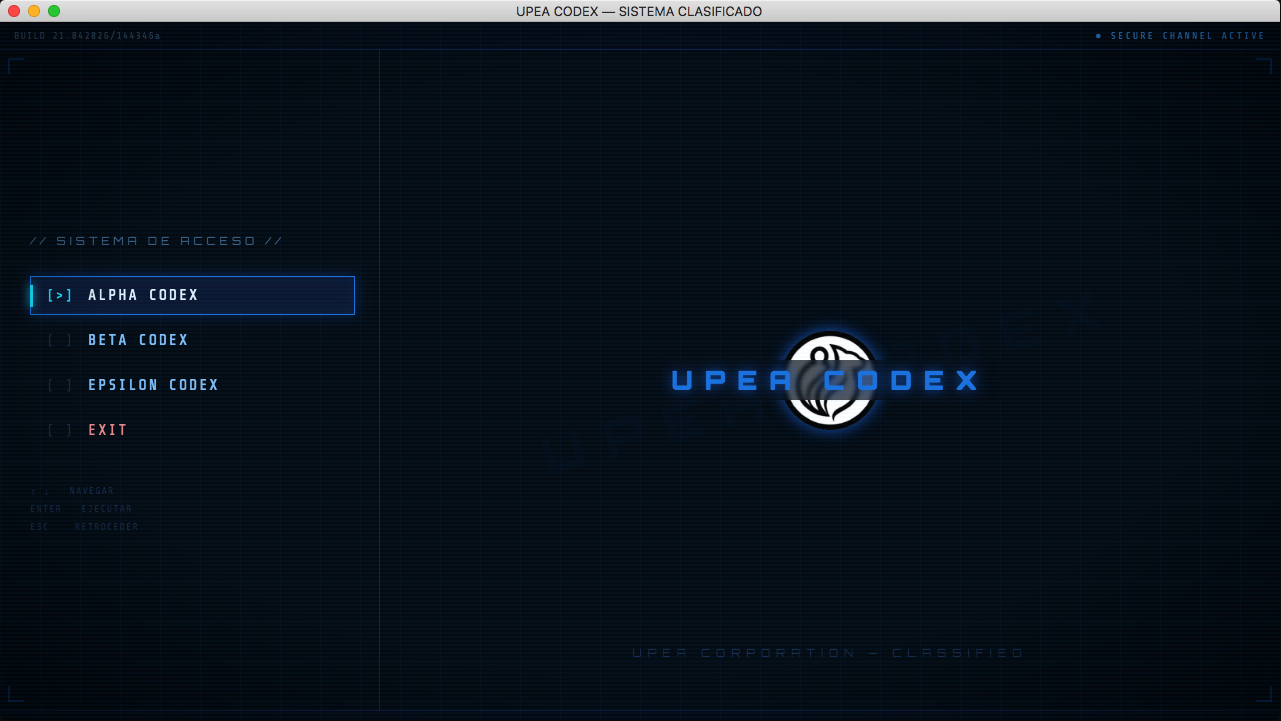
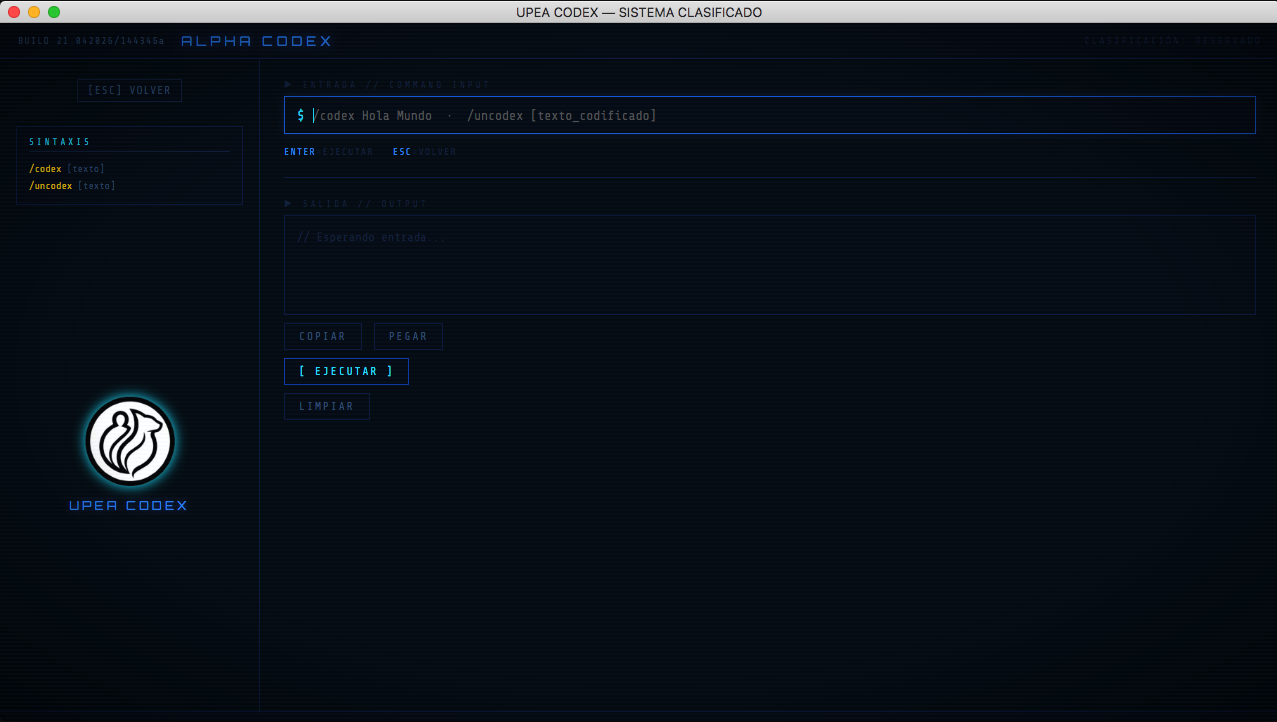
UPEA Codex
A downloadable tool for Windows, macOS, and Linux
This tool is the official encoder and decoder of UPEA Corporation.
I was asked to create and publish it, ensuring that the encoding and decoding code was encrypted.
For those who install it, remember to check the SHA256 hash to verify that it is the original. The corresponding SHA256 hash is listed below, for both Spanish and English.
⬇️ CÓDIGO SHA256 EN ESPAÑOL ⬇️
- Windows SHA256: 44636c23210c7e8f7550e1eacb52ffb5b1b4cfeec96d77e66d850413c96202d0
- Linux SHA256: cb31a7b2724b3973add87975ed668c1c6935918d696cfff83c2f123e606efe0e
- macOS SHA256: dbd331c3a1731ec37086559111e14d16b36903842e0e4f11e7c093195f87098d
⬇️ SHA256 CODE IN ENGLISH ⬇️
- Windows SHA256: 54a209af6679801e22a776e290d9f0d3f02f0049a28341375591f45611a57d05
- Linux SHA256: 3b7bd4ab3807a35d192ce0404b4bfd8faf62b9ed239deffe71aa41186971f515
- macOS SHA256: 38f526f78bdcf38f25da37664b20308014c5bf8d43a7c74ebf8cbc4f85a75357
It is very important that you have a screen/monitor with a minimum resolution of 720p or higher so that you can use it properly.
⚠️ Only works on 64-bit operating systems with a 64-bit processor ⚠️
macOS users with Apple Silicon processors (M1, M2, M3 and M4). If this is your first time installing a macOS app designed with Intel x64 architecture, you will be prompted to install Rosetta 2. Simply click "Install," as it is a factory-installed native macOS installation for compatibility.
There is a possibility that your Apple computer is quarantining the application; use the following command, adding the application's path, to remove the quarantine.
xattr -d com.apple.quarantine "/path/to/file"
⚠️ IMPORTANT NOTICE ⚠️
We do not have a digital signature for the application; it is up to you to trust me and the UPEA Corporation team.
SHA256 HASH VERIFICATION COMMAND
Here's a quick command to verify the SHA256 hash on your operating system. You'll need to add the file path.
Windows CMD (Terminal):
certutil -hashfile "\path\to\file" SHA256
Windows CMD (PowerShell):
Get-FileHash "\path\to\file" -Algorithm SHA256
Linux:
sha256sum "/path/to/file"
macOS:
shasum -a 256 "/path/to/file"
Download
Install instructions
How to install it on macOS
1. Download the macOS application; it will be a .dmg file
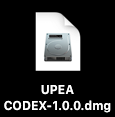
2. Verify the SHA256 code to ensure it is the original. This is done from the terminal.

Use the following command to check the SHA256 code; in the image, the one underlined in red is the SHA256 code that should appear.
shasum -a 256 /path/to/downloaded/file.dmg
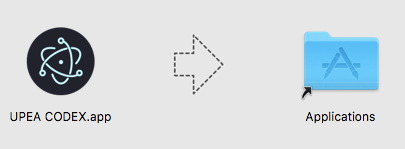
3. Drag the application into the "Applications" folder.
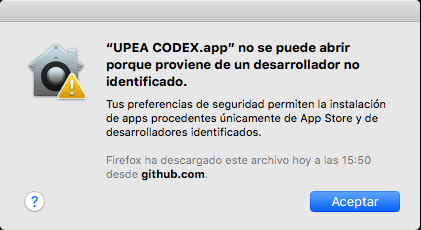
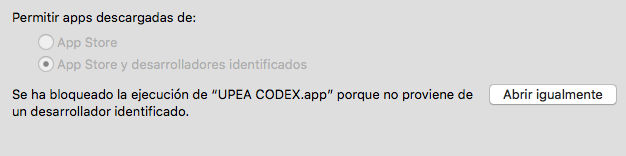
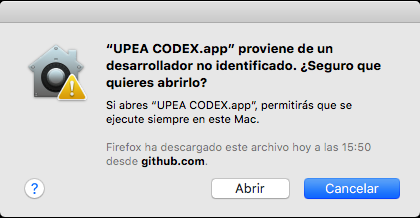
4. The application is not identified as a developer. Therefore, you will need to go to "System Preferences" and under "Security & Privacy" select "Open anyway." This will allow you to run the application.
How to install it on Windows
1. Download the Windows application; it's an .exe file.
2. Verify the SHA256 code to ensure it is the original. This is done from the terminal.

Use the following command to check the SHA256 code; in the image, the one underlined in red is the SHA256 code that should appear.
certutil -hashfile "path\to\file" SHA25
3. Malicious Download Protected by Windows
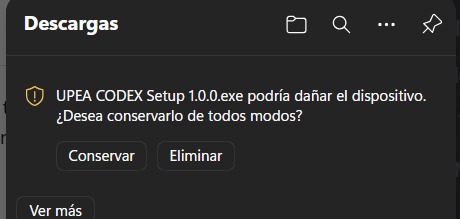
The file may be detected as malicious when downloaded, as it lacks a developer's digital signature. Simply click "Keep" or allow the download.
4. Windows Defender Protection
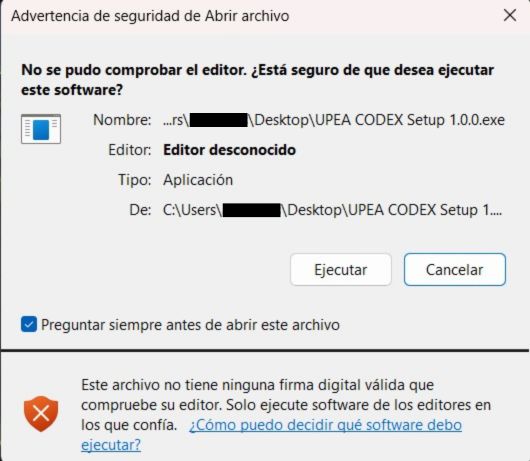
When you run it, you may also see a warning asking if you want to run an application without a digital signature. As I mentioned, we don't have a digital signature, so just click "Run."
5. Running the .exe file starts the installation automatically.
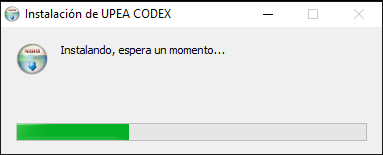
The location is here:
C:\Users\"USERNAME"\AppData\Local\Programs\upea-codex-win
The UPEA Codex uninstaller is also available.

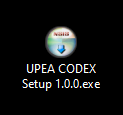
6. This is what the icon will look like after the application is installed.

Development log
- UPEA CODEX Version 1.1.064 days ago